The introduction
The drawing changes.
The context stays.
A clearer review before a drawing moves on. Compare revisions, resolve supported details, and leave notes the next person can follow.
- Built for recurring drawing handoffs
- Start with a real example. No account needed.
↓ Scroll to follow one drawing
The people behind the drawing
Less hunting.
More reviewing.
For drafters, CAD reviewers and small teams passing drawings from one person to the next. Give the release details a consistent place in the review.
- Check title-block details against selected settings
- Keep findings and your decisions together
A focused companion to your CAD workflow.
01 / Compare
One revision.
All that changed?
Load the current DXF and an optional older version. Review possible additions, removals and entity or style changes with their supporting details.
- Keep current and baseline references together
- Investigate the evidence, then verify in CAD
This animation illustrates the idea. The product reports comparison findings; it is not a visual CAD overlay.
02 / Inspect
A blank field.
A clear next step.
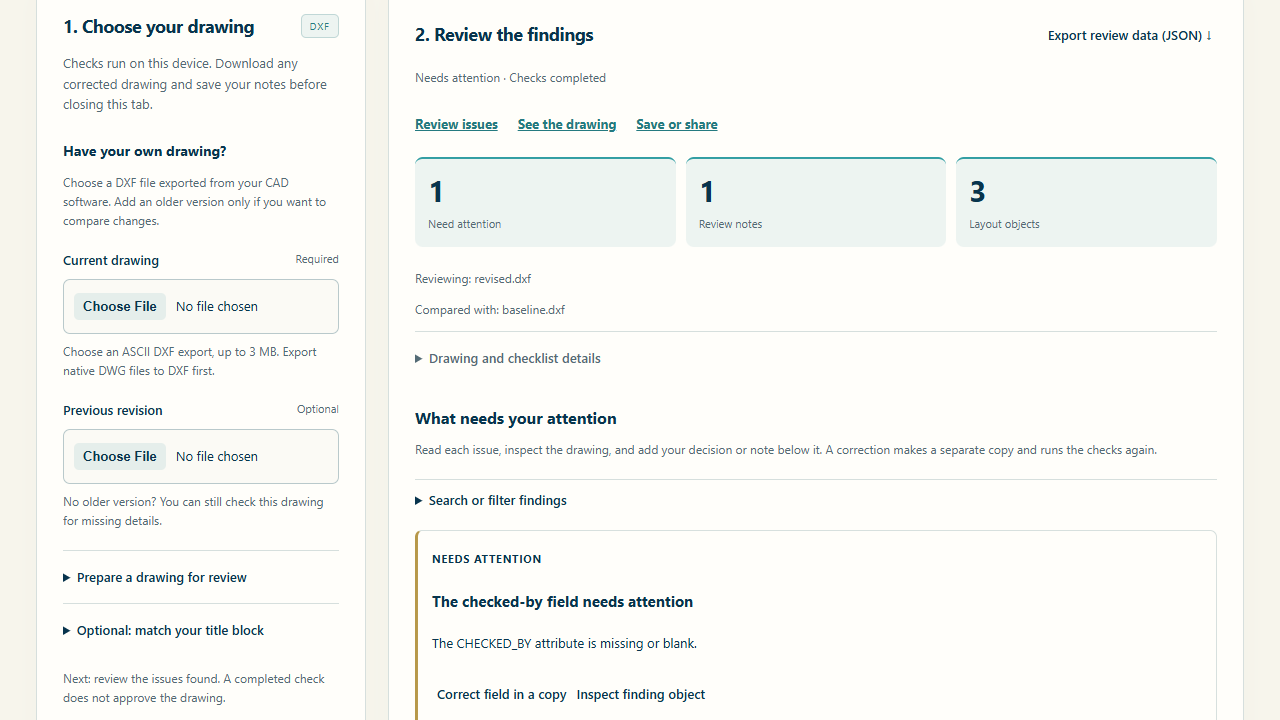
A required “checked by” field is empty. See the finding, confirm the title-block settings, and decide what needs attention.
- Checks follow the standard or settings you select
- Add context instead of losing it in another message
A clean automated check does not approve the drawing.
03 / Correct
Your correction.
A separate copy.
Enter the authorized text for a supported existing plain-text title-block attribute. Download the corrected DXF and run the checks again.
- Your original drawing stays unchanged
- You supply the text and verify the corrected file
Bounded text corrections. No automatic design or geometry editing.
04 / Use the actual product
From explanation
to doing.
Open the example, inspect a finding, write your review note, and export the result. Try the complete flow before using your own drawing.
- The sample makes the first review tangible
- Export a readable report and reusable review data
05 / Choose where you work
On your device.
Or with your team.
Use the standalone reviewer privately, or open an invitation-only workspace to share explicitly uploaded drawings and review worksheets.
- Standalone: no account; drawing files stay on your device
- Team workspace: owner, editor and viewer access
06 / Hand off
Leave a review
worth opening.
The drawing reference, the decisions, the unresolved questions. Give the next person something they can follow, then let the qualified reviewer make the release decision.
- Readable HTML report for the handoff
- JSON review data to restore matching review notes
Know what you are trying
Clear scope.
Better expectations.
Start with the sample. Then check whether your drawings and your team's review process fit.
Open the sampleWhich drawings can I use?
ASCII (text) DXF files, up to 3 MB each. Native DWG and the contents of linked external drawings are not supported. Export a supported DXF from your CAD software and confirm compatibility.
Are my drawings uploaded?
The standalone reviewer runs on your device without uploading drawing files. The separate invitation-only team workspace uploads the drawings you explicitly choose to share.
What can DraftVerge correct?
Supported existing plain-text title-block attributes. You enter the authorized replacement text and download a separate DXF. Geometry changes, adding missing attributes and automatic engineering decisions are outside this correction flow.
Does a clear report mean it is approved?
No. Findings help guide a review. A qualified person must verify the complete drawing, including unsupported content and external references, and approve its release.